Octer Help Center
Learn how to use agents, teams, skills, auto tasks, OClaw, subscriptions, and account settings.
1. Getting Started
Open https://octer.ai and click "Don't have an account? Register" at the bottom of the login page to open the sign-up page.
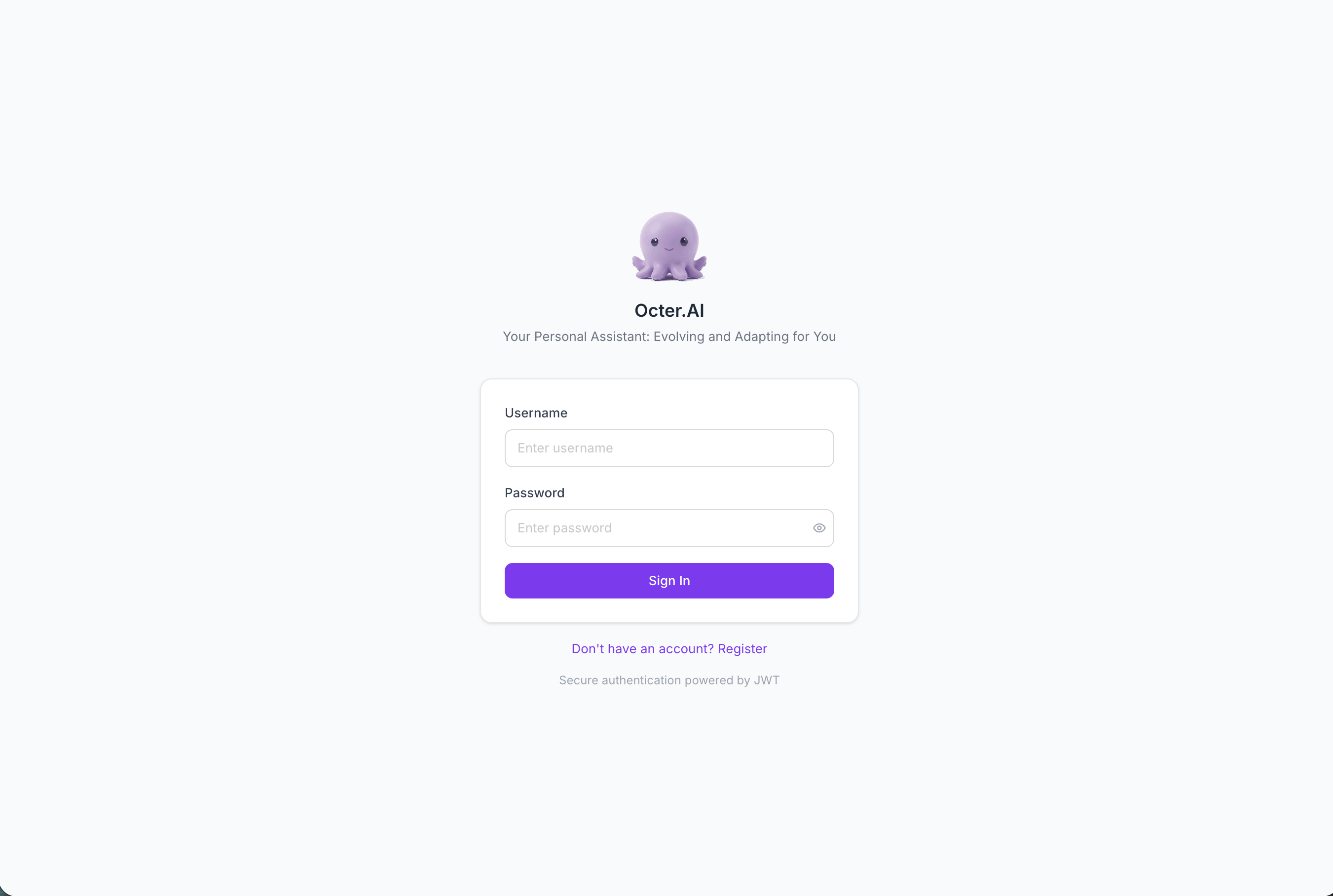
First sign-in opens a 3-step questionnaire (industry → role → AI functions). The questionnaire is only used to personalize your initial recommendations — it doesn't restrict what you can do later.
2. Homepage
The homepage is Octer's central hub.
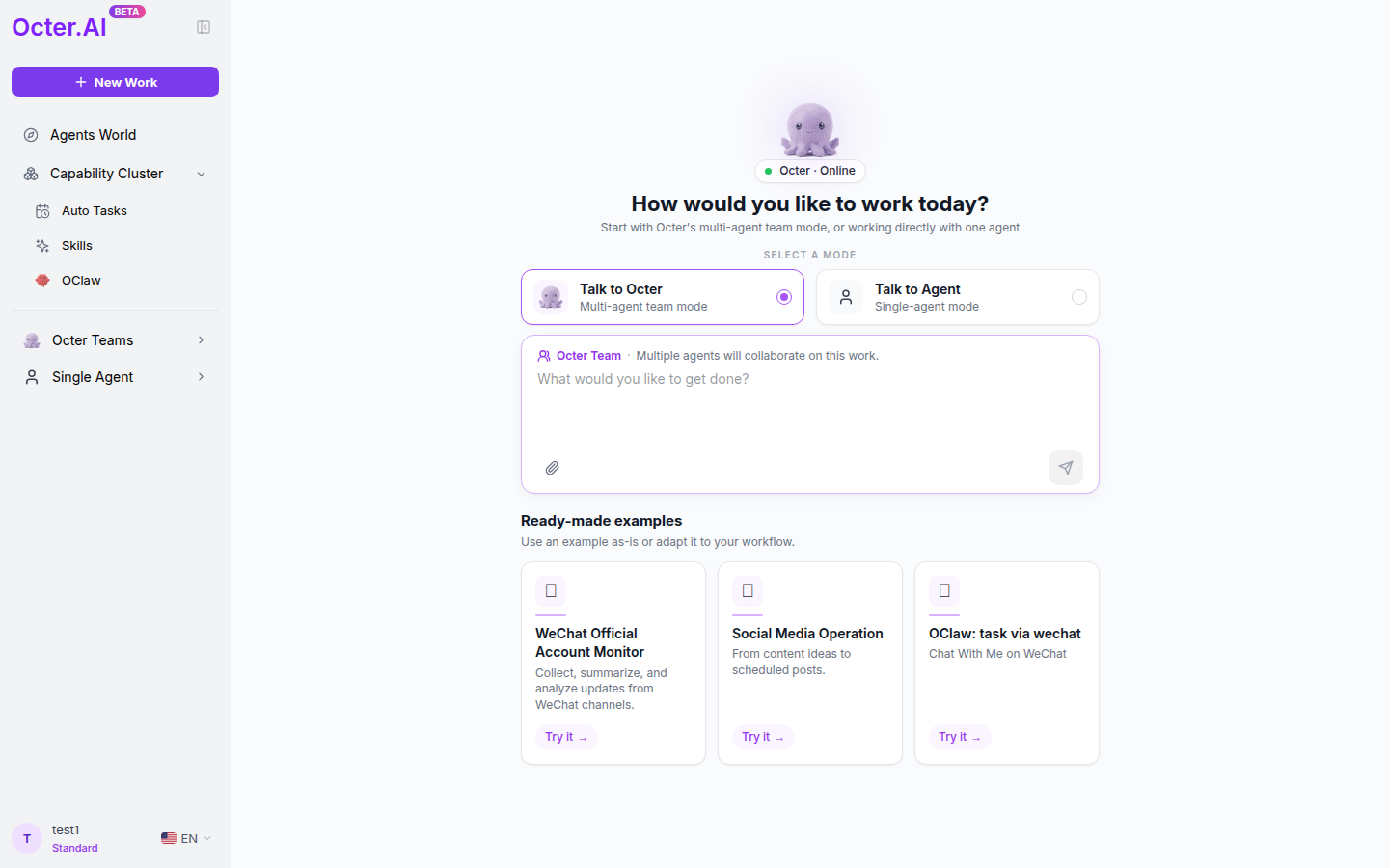
The two mode cards decide who handles the next task:
- Talk to Octer — multi-agent team mode
- Talk to Agent — single-agent mode
Below them, the 3 ready-made example cards (WeChat Monitor / Social Media Operation / OClaw) — click "Try it →" for one-click experience.
Left Navigation
| Item | Purpose |
|---|---|
| + New Work | Opens a "Choose Workflow" modal → pick Team / Single Agent → drops you straight into the new conversation |
| Agents World | Browse / clone / manage Agents |
| Capability Cluster → Auto Tasks | Run Agents on a schedule |
| Capability Cluster → Skills | Create / install capabilities |
| Capability Cluster → OClaw | Use Octer in messaging apps |
| Octer Teams | Tasks you've run in team mode (most-recent first) |
| Single Agent | Tasks you've run in single-agent mode |
Click your avatar in the bottom-left → account menu (Me / Memory / Subscription / Help / Settings / Sign Out). Next to it is the language dropdown (English / 简体中文 / 日本語, applied instantly).
3. The Two Modes
| Pick | When |
|---|---|
| Team | Complex work needing multiple roles (writing + design + review) |
| Single Agent | Simple, single-objective tasks (one piece of writing, a translation) |
Mode is bound to a single task — once started, it can't be changed. To switch, start a new task: click "+ New Work" → pick the other mode. The previous task keeps running in the background and is not interrupted.
4. Single-Agent Workflow
4.1 Pick an Agent
Agents World → My Agents → click Use on the card → conversation view opens.
First-time users typically clone an Agent from Agents Marketplace first (see 6.1) and then click Use.
4.2 Edit an Agent (Important)
Agents World → My Agents → click Edit on the card → you're navigated to the Agent's detail page in edit mode. There are 6 editable fields:
| Field | Purpose |
|---|---|
| Description | Short blurb shown on the card and in marketplace listings |
| Category | One of 15 built-in categories (general / productivity / research / creative / coding / data / marketing / finance / sales / product / support / gamedev / spatial / specialized / strategy) |
| Soul ⭐ | The Agent's core character and persona — "who it is". When you create a project you pick from one of 16 MBTI presets (e.g. ENTP) and the persona text is filled in automatically; you can also free-edit the text in this view |
| Agent Guidelines ⭐ | The Agent's behavioral rules and boundaries — "how to behave", what it should and shouldn't do, output format |
| Skills | Available capabilities |
| Visibility | Private / Public. When set to Public, other users can use this Agent inside their Octer Team mode — i.e., it shows up in their candidate member list when they form a team |
Soul says "who it is" (e.g. ENTP-based: "You're curious, love debating possibilities, enjoy challenging assumptions…"). Guidelines say "how to behave" (e.g. "Title ≤20 chars with 1 emoji; never use compliance violations; end every post with 3 hashtags"). The two work together.
Saved changes affect future tasks only; past completed tasks are untouched.
4.3 Files and Canvas
Files generated by a task appear under the Files tab on the right of the conversation view:
- Documents / PDFs → click → file preview slides out (download, delete).
- Images → click → opens Canvas directly.
Canvas
Octer's built-in image editor. It only opens when you click an image — it doesn't auto-open, and there's no "Edit" button in the file preview.
Canvas exposes two toolbars:
Bottom global toolbar (always visible):
| Action | What it does |
|---|---|
| Upload | Bring more images onto the canvas from local files or clipboard |
| Generate | Type a prompt; AI generates a new image and adds it to the canvas |
| Mark | Enter mark mode — drag a rectangle over a region of any image on the canvas; that rectangle is synced as a thumbnail chip above the input box as context for your next message (you can mark multiple regions) |
Floating per-image toolbar (appears when you select an image):
| Action | What it does | Overwrites the original? |
|---|---|---|
| Edit text | OCR detects text in the image → click a phrase → edit the text → on submit, AI re-renders the new text into the image | Yes |
| Fix text | Select a region with garbled / blurry / misspelled text → AI auto-corrects it | Yes |
| Delete | Remove this image from the canvas (the original file in the task is preserved) | No |
Typical workflows:
- Talk about a region of an image — Mark a rectangle → type "switch this region to autumn tones" → send. The Agent receives the cropped region as context.
- Generate variants and compare — click Generate a few times to get different versions side by side, pick the best.
- Fix typos in an image — Edit text is far cheaper in credits than asking the Agent to redraw the whole image.
⚠️ Edit text / Fix text overwrite the original file with no version history. Duplicate important assets in the file directory before editing.
4.4 Publish to the Marketplace
In the Agent detail page edit mode, flip Visibility to Public → the Agent appears in Agents Marketplace and others can clone it. Flip back to Private to remove it.
5. Octer Team (Multi-Agent)
You describe the goal; Octer assembles a team. Three phases:
5.1 Team Formation
Octer analyzes the task and surfaces a Team Formation card waiting for your approval.
Key concept: where do members come from?
Candidates are pulled from the entire Octer-wide public pool, specifically:
- All Agents you've created yourself (regardless of visibility, they always show up for you)
- Agents made Public (
globally_visible) by other usersOcter organizes them by relevance into three groups: Selected / Recommended / Other — Selected are the ones Octer brings in by default, Recommended are also-good fits, Other is the rest of the relevant pool.
The takeaway: building / cloning more Agents in Agents World and making your good ones Public enriches the candidate pool — both for you and for the wider Octer collaboration ecosystem.
Tick / untick to include or exclude → click Confirm to proceed, or Reject to reassemble (you can append a hint like "add a designer" to steer the next attempt).
5.2 Octer's View
After confirmation, the screen shows the orchestrator working — goal decomposition, dispatch plan, dependencies. Just watch; it auto-advances.
5.3 Team Working
Each member gets a side-by-side card showing its sub-conversation (message stream + tool calls).
- Double-click a card / click ↕ → expand to full-width view for detail.
- Click ← in the top-left to return to the multi-member view.
- Need to add information mid-run? Type into the main input box — Octer (the manager) receives and routes it.
When the task ends, the right column expands with all deliverables.
6. Agents World
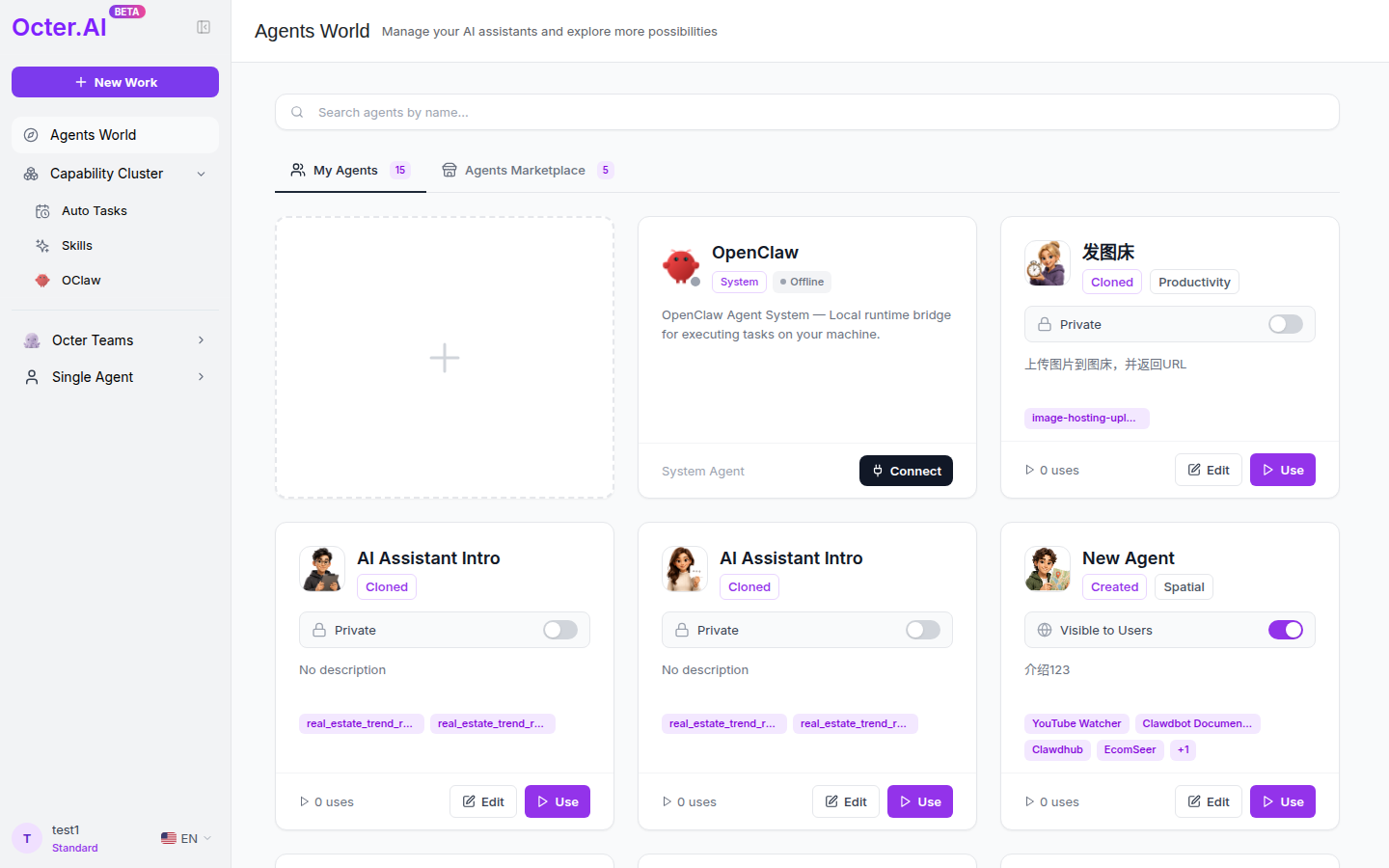
- My Agents — what you created + what you cloned + system Agents
- Agents Marketplace — community-published Agents
6.1 Clone vs Use (the most confusing pair)
| Action | Where it appears | What it means |
|---|---|---|
| Clone | Agents Marketplace / detail page | Copy a published Agent into your account |
| Use | My Agents / detail page | Start a new conversation with an Agent you already own |
Flow: spot an Agent in the marketplace → Clone → it lands in My Agents → Use → start chatting.
💡 A third possibility: getting picked as a team member. When the original author sets an Agent to Public (see the Visibility field in 4.2), that Agent appears in other users' candidate-member list when they form a team in Octer Team mode — they can pick it without cloning. This is one of the ways Octer encourages Agent sharing: making your Agent public lets others use it inside their team workflows.
Clone is a one-time snapshot: after cloning, you and the original author are completely independent — your edits don't reach them, theirs don't sync to you. The author only sees "clone count + 1" — not who you are. Want their latest version? Clone again.
Editable fields after cloning are listed in 4.2. The author attribution is permanent ("Cloned from XXX").
6.2 Publishing
Listing your Agent on the Agents Marketplace so others can discover and clone it is a separate, explicit action (not the same as toggling visibility):
- Open the Agent's detail page (Agents World → My Agents → click the card).
- Click the Publish button at the top-right → the "Publish to marketplace" dialog opens.
- Fill in: summary, category, tags, cover image (other fields are inherited from the project).
- Submit → the system creates a new listing on the marketplace → others can find and clone it.
Publish ≠ Visibility — they're independent:
- Visibility = Public (see 4.2) controls whether other users' Octer Team mode can pick this Agent.
- Publish lists the Agent in the Agents Marketplace tab where others can clone it. You can have one without the other.
The published version is a snapshot of the current state. Later edits don't auto-sync — to update the listing, edit it from the marketplace detail page (visible only to you, the author) or re-publish. Clones already in other accounts are independent of the listing and aren't recalled.
7. Skills and Memory
7.1 Skills
A Skill is an Agent's callable capability extension.
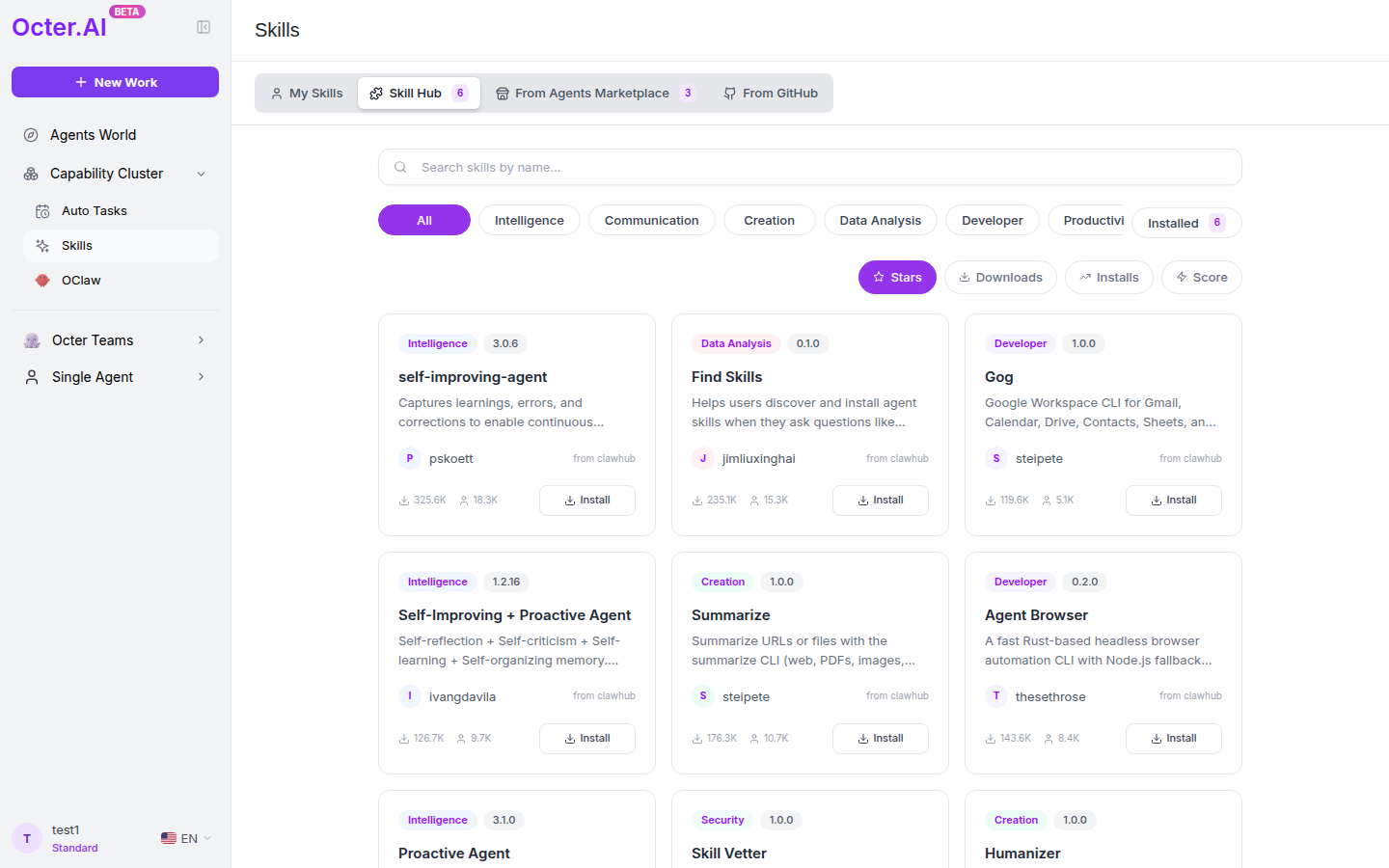
Four sources:
- My Skills — what you created
- Skill Hub — Octer's official skill marketplace (self-improving-agent / Find Skills / Summarize…)
- From Agents Marketplace — bundled with published Agents
- From GitHub — community-maintained on GitHub
External skills get an Install button; project-level skill picks happen in the project edit dialog.
Writing your own skill: My Skills tab → New Skill. Don't know how? The ✨ button next to the input box opens a 5-step guide: scenario → goal → rules → examples → boundaries.
7.2 Memory
Personalization preferences and context that persist across tasks — making Agents understand you better the more you use them.
Path: bottom-left avatar → account menu → Memory.
The page is a single big Markdown text box. Top-right has an Enabled toggle (turns the whole memory system on/off) and an Edit button.
What writes well:
- Preference: "Tone is formal — avoid internet slang."
- Background: "My company is a cross-border e-commerce focused on Southeast Asia."
- Hard constraint: "Never mention competitor X."
- Resource: "My S3 bucket name is octer-prod-bucket."
Short, specific rules beat long essays. One line per fact.
8. Auto Tasks
Run Octer automatically while you're away.
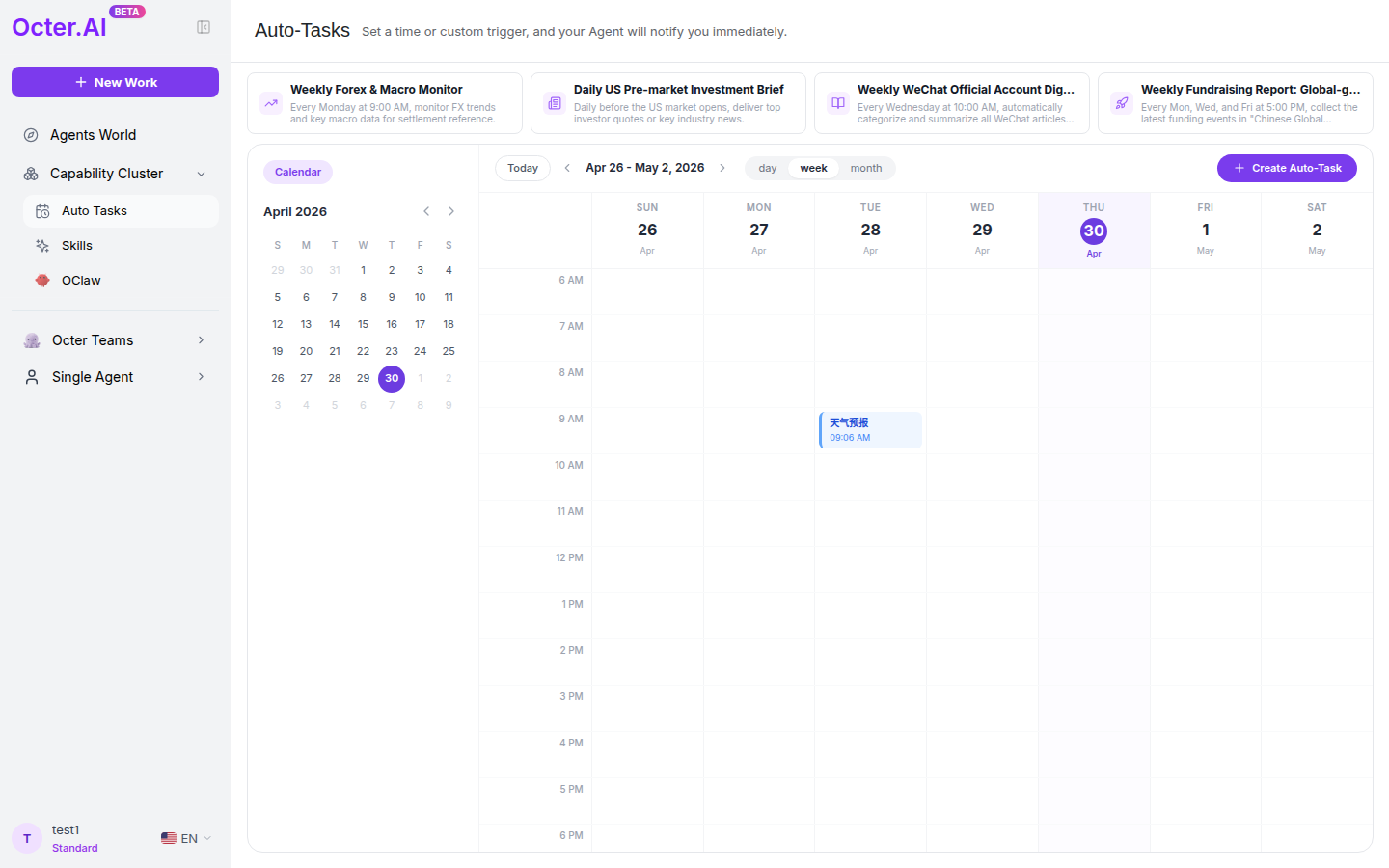
Path: left nav → Capability Cluster → Auto Tasks.
A calendar view with 4 example tasks at the top (clone-as-template). Click + Create Auto-Task in the top-right to open a form that asks for prompt, first execution time, repeat rule, and so on.
Click any calendar marker to see run history; right-click for Edit / Pause / Delete. Edits affect future runs only.
9. OClaw Multi-Channel
Start and receive Octer tasks from messaging apps.
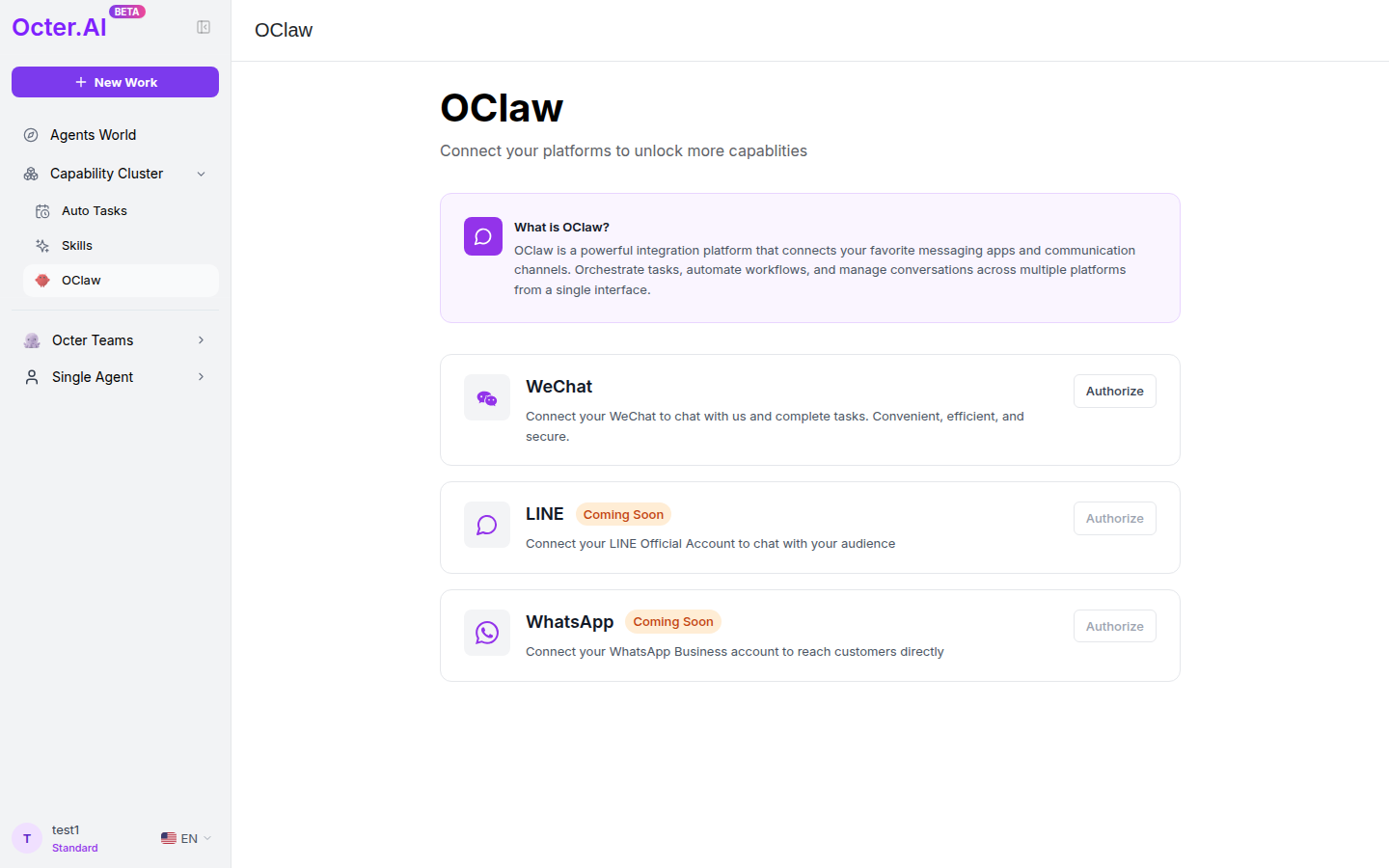
Channels:
- WeChat ✅ Live
- LINE / WhatsApp ⏳ Coming Soon
Connect: OClaw page → WeChat card → Authorize → scan the QR code → status becomes "Connected".
OClaw never pushes to you on its own — an explicit privacy commitment:
| What you do | OClaw's behavior |
|---|---|
| Send OClaw a message in WeChat | ✅ Runs the task, replies in WeChat |
| Start a task on octer.ai (web) | ❌ WeChat receives no notifications |
| A task completes | ❌ No proactive push (unless that task was started from WeChat) |
Disconnect: WeChat card → Disconnect. Conversation history stays in your account.
10. Subscription and Credits
Octer is credit-based: each task consumes some credits; you can run unlimited tasks while you have credits.
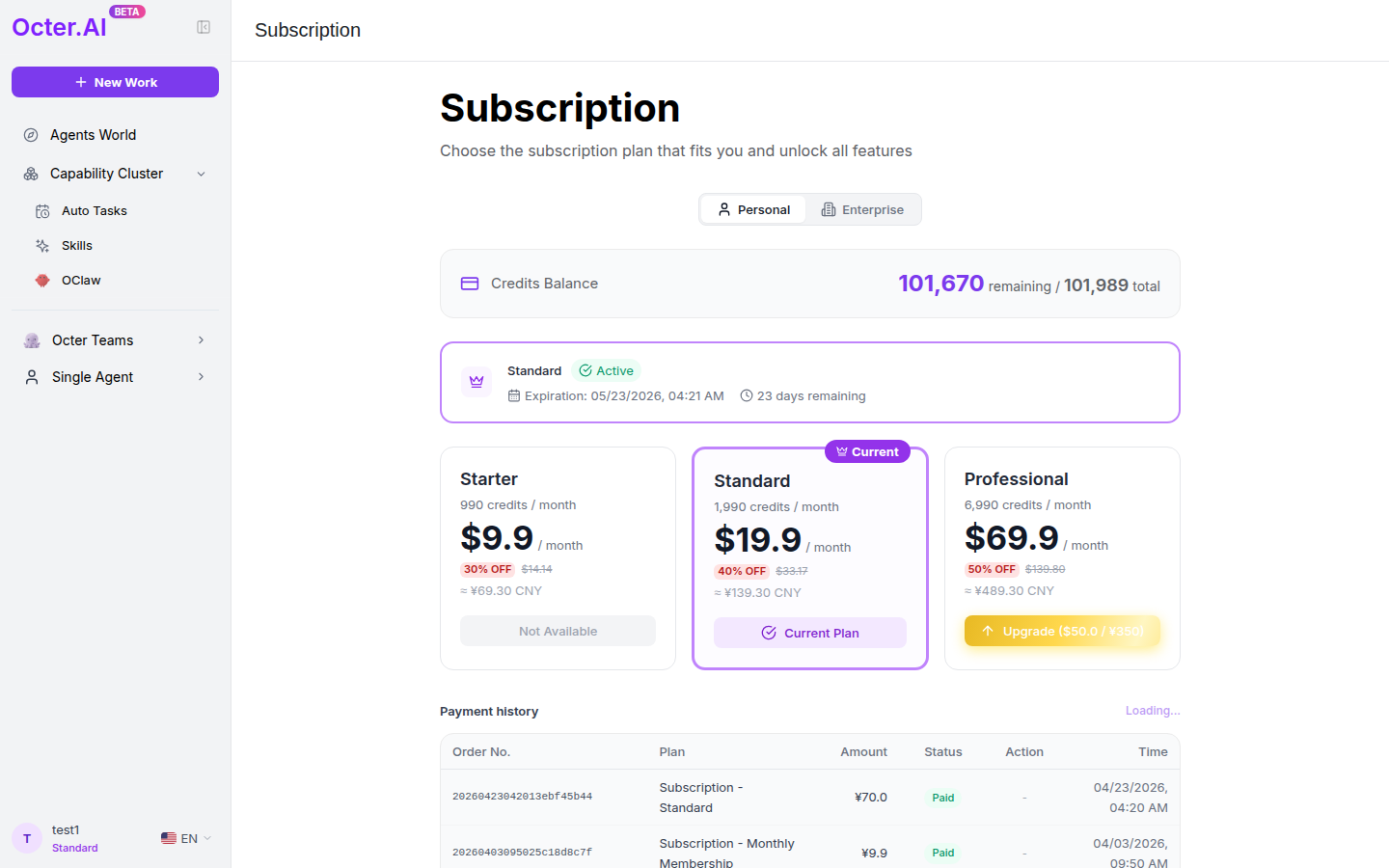
Three Personal plans:
| Plan | Credits/month | Monthly |
|---|---|---|
| Starter | 990 | $9.9 |
| Standard | 1,990 | $19.9 |
| Professional | 6,990 | $69.9 |
Pricing and quotas may change between releases — refer to the live page.
Two credit pools:
- Free Trial Credits — gifted on signup (15-day validity), expire at end of period.
- Subscription Credits — refresh monthly with the subscription, do not roll over.
Upgrades take effect instantly; lower plans show "Not Available" — no mid-cycle downgrades.
11. Me Page
Path: bottom-left avatar → Me.
Contains: account info, credit usage breakdown, and third-party authorizations (Instagram / Facebook / X / TikTok / Xiaohongshu / S3). Each platform card has a status + Connect / Disconnect button.
⚠️ Disconnecting a platform breaks related skills (e.g. "Publish to Instagram") for any project that depends on them.
12. FAQ
Forgot my password? Self-service reset isn't supported.
Can I stop a task mid-run? Yes — the Send button becomes a Stop button while running.
Will the original author know about edits I made on a clone? No. The two Agents are completely independent — the author only sees the "clone count + 1" stat.
Will OClaw push notifications to me? No, see Section 9.
Will Canvas's "Edit text" damage the original image? Yes — it overwrites the original file. Copy important assets first.
Do unused credits roll over? Free Trial credits are time-bounded ("N days left"); Subscription credits refresh monthly, neither rolls over.
Still need help?
Contact our support team and include the email address connected to your Octer account.